




Want to know how much website downtime costs, and the impact it can have on your business?
Find out everything you need to know in our new uptime monitoring whitepaper 2021

Visual Studio Code is a feature-rich IDE that can be used for small personal projects and massive enterprise projects alike. It’s a great tool that enables a developer to focus on the task they have in front of them, but there are times when a developer gets slowed down like when they have to move from the keyboard to the mouse and then having to click through endless menus to find the file or feature they’re looking for. Thinking it sounds like you?
Your fingers will not only thank you after mastering just a few keyboard shortcuts, but you’ll boost your productivity and look like a Visual Studio Code wizard to anyone peering over your shoulder.
Microsoft provides this cool cheat sheet you can save to your desktop or print out and pin to your corkboard for quick reference. This guide is going to cover my favorite shortcuts from this list and show you some examples of use.
The command palette is probably the most powerful shortcut in Visual Studio Code; it is the gateway to all the functionality Visual Studio Code has to offer. You can quickly open files from here, search for symbols, and trigger editor commands all in the same window.
Here are a few of the most useful shortcuts you can use to open the command pallet for different uses.
Ctrl + P will let you navigate to any file or symbol by typing its name
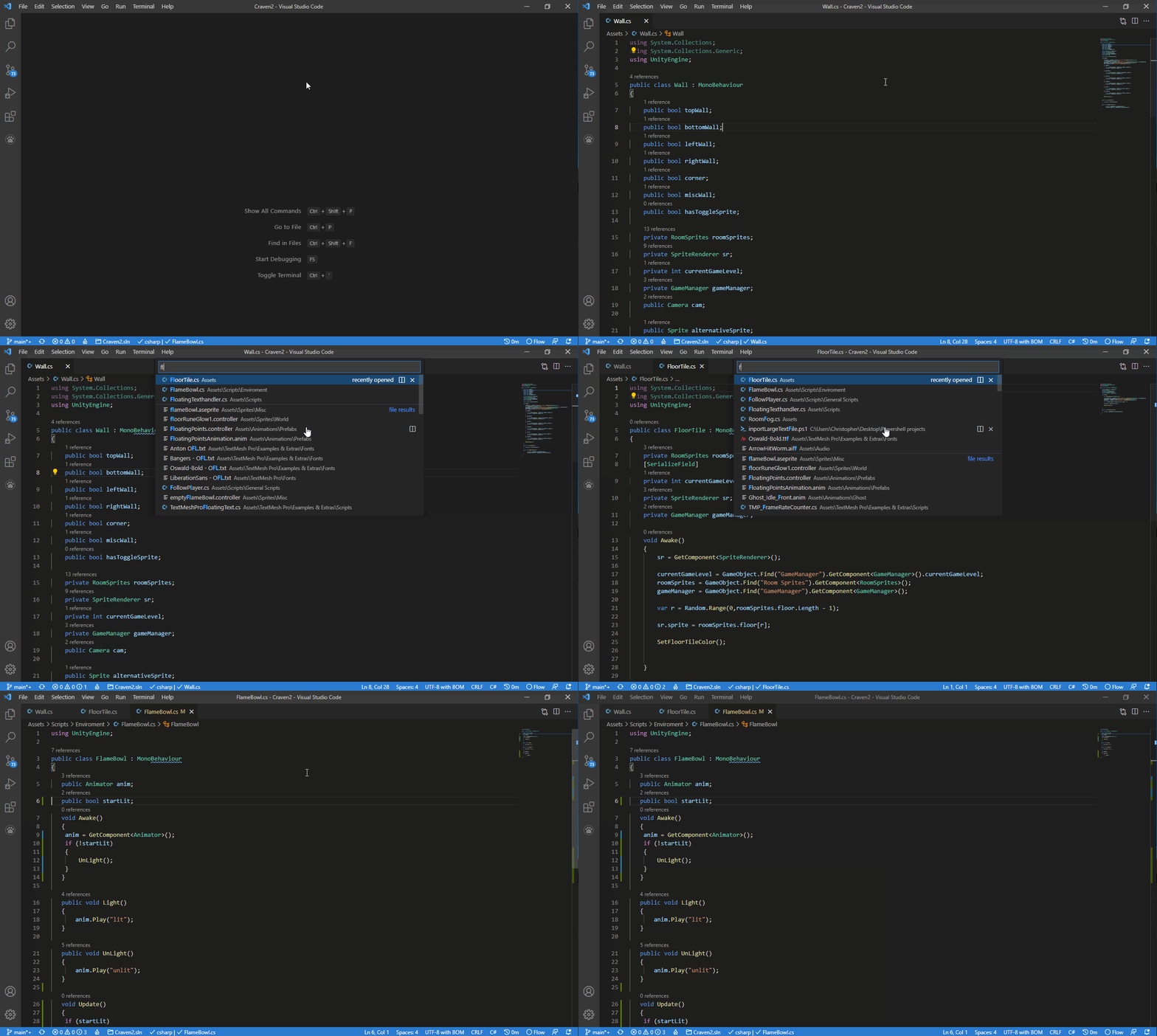
Ctrl + Shift + P will bring you directly to the editor commands
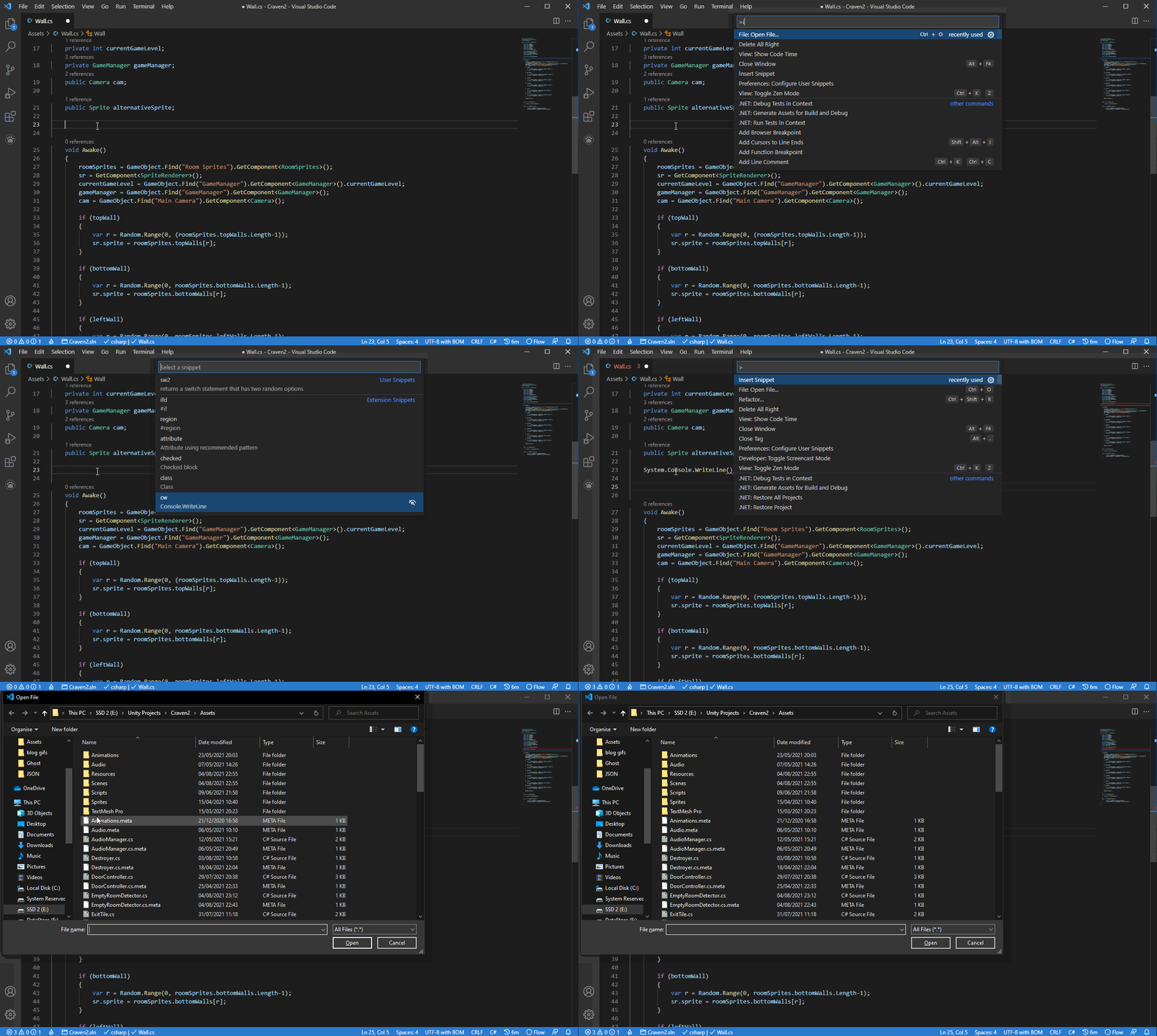
Ctrl + Shift + O will let you navigate to a specific symbol in a file
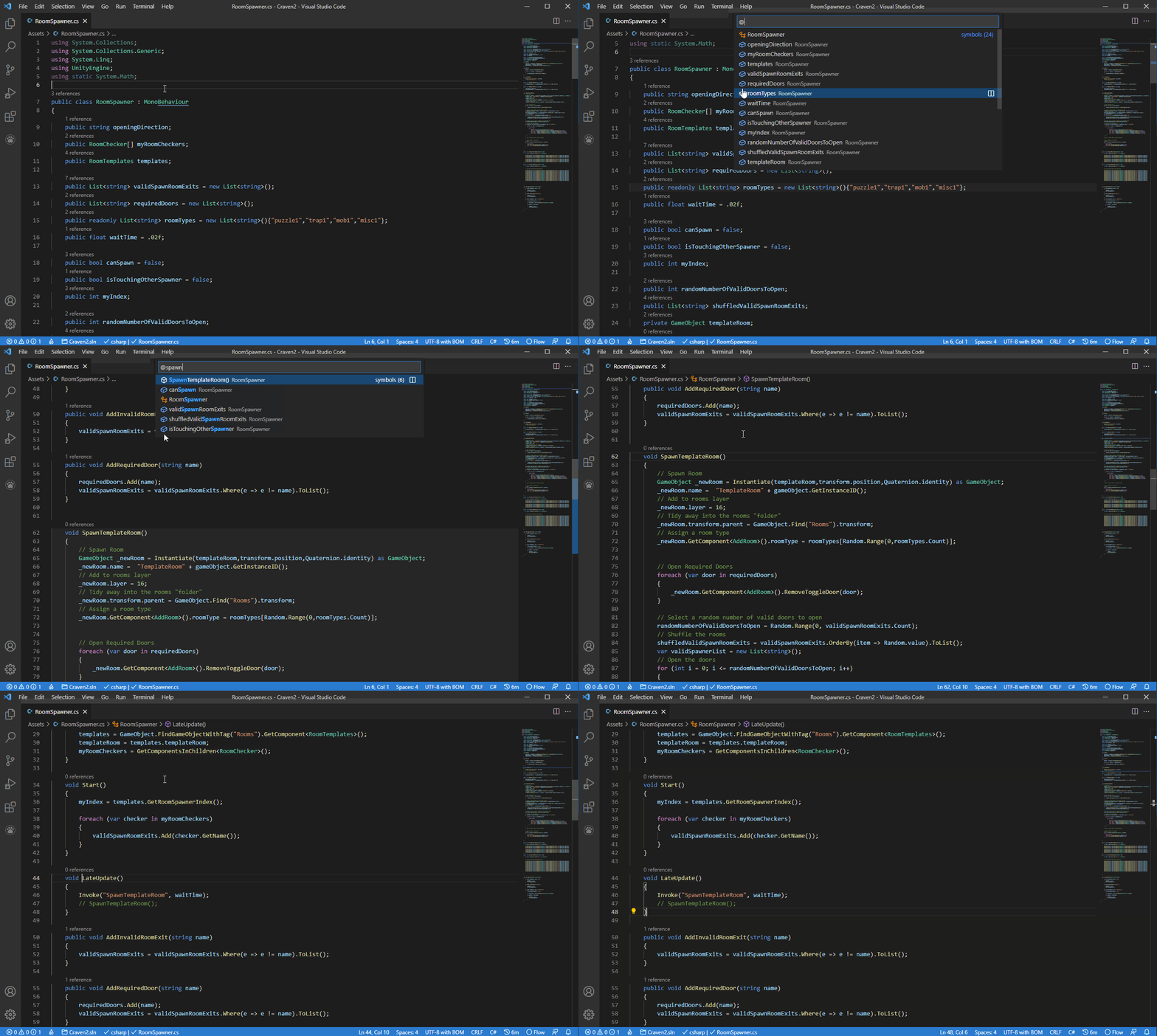
Typing? into the command pallet will show you a list of available commands you can execute from the current view:
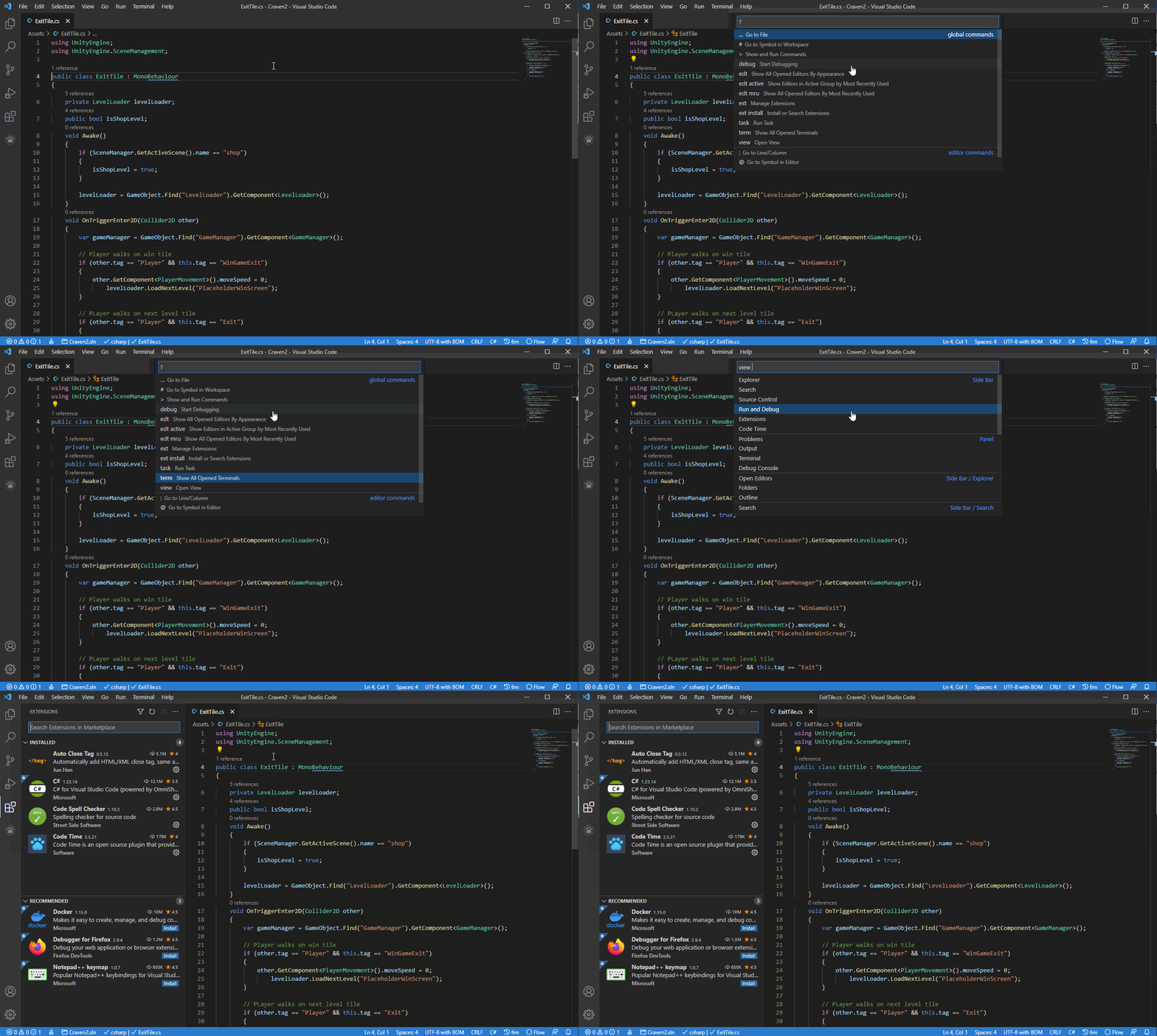
This is a big one for me, when I need to really dial in my focus on a problem I want as few distractions as possible. Zen mode removes all UI elements including the application window borders and the OS taskbar and leaves you with just the active code window.
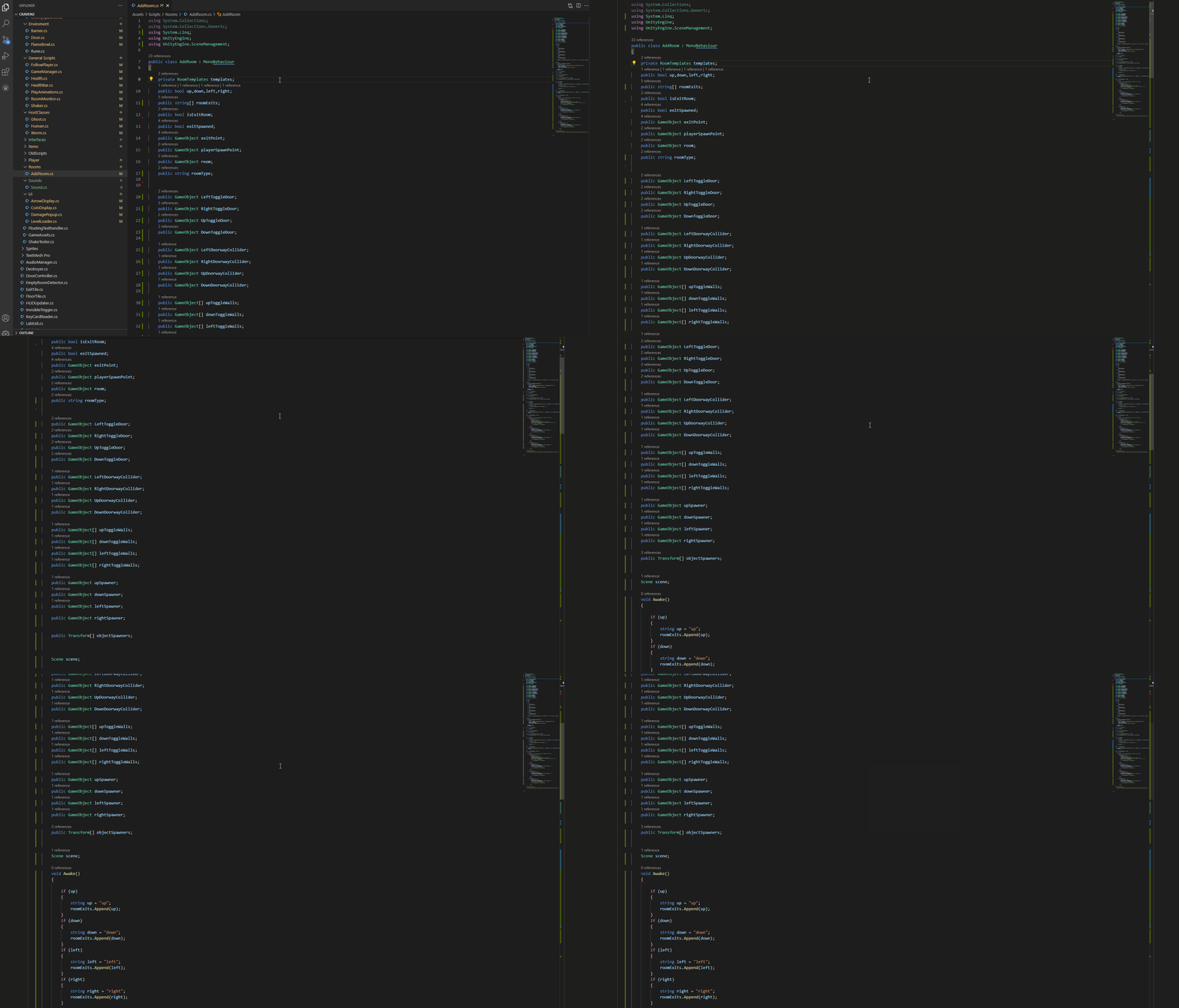
The shortcut is a bit tricky as it requires you to press Ctrl + K then release Ctrl + K and then press Z. This shortcut toggles you in and out of Zen Mode, Pressing Esc a few times will also back you out of Zen Mode.
The command pallet is useful for quickly jumping around files, however, sometimes you want to quickly view the folder hierarchy of your project to double-check where things are saved or quickly remind yourself what changes you have staged.
Ctrl + B toggles the sidebar; this will open the last used sidebar window in this case the explorer window.
Once the sidebar is open, you can grab its focus by pressing Ctrl + 0 and then navigating using the tab and the arrow keys, once you are done in the sidebar Ctrl + 1 will switch focus back to the code window.
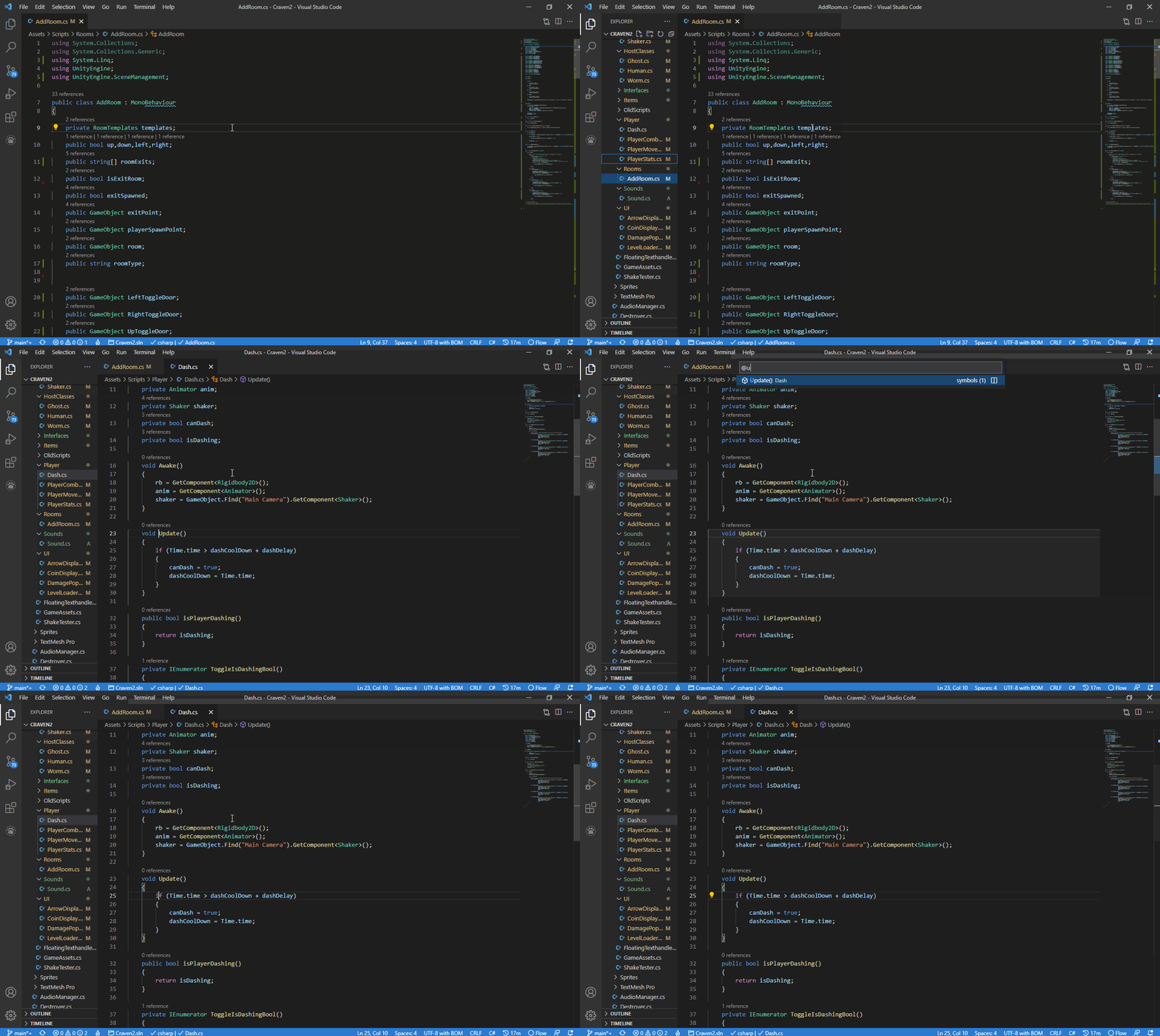
The shortcuts for specific default sidebar windows are:
Shift + Ctrl + E Launches the explorer pane.
Shift + Ctrl + G Launches the Git pane.
Shift + Ctrl + D Launches the Debug pane.
Shift + Ctrl + X Launches the Extensions pane.
Top-Tip: These shortcuts also work in Zen Mode!
You’ve probably already discovered the search shortcut Ctrl-F, but did you know Visual Studio Code has different types of find features built-in?
Ctrl + F as mentioned above this shortcut will find whatever you search for in the current file.
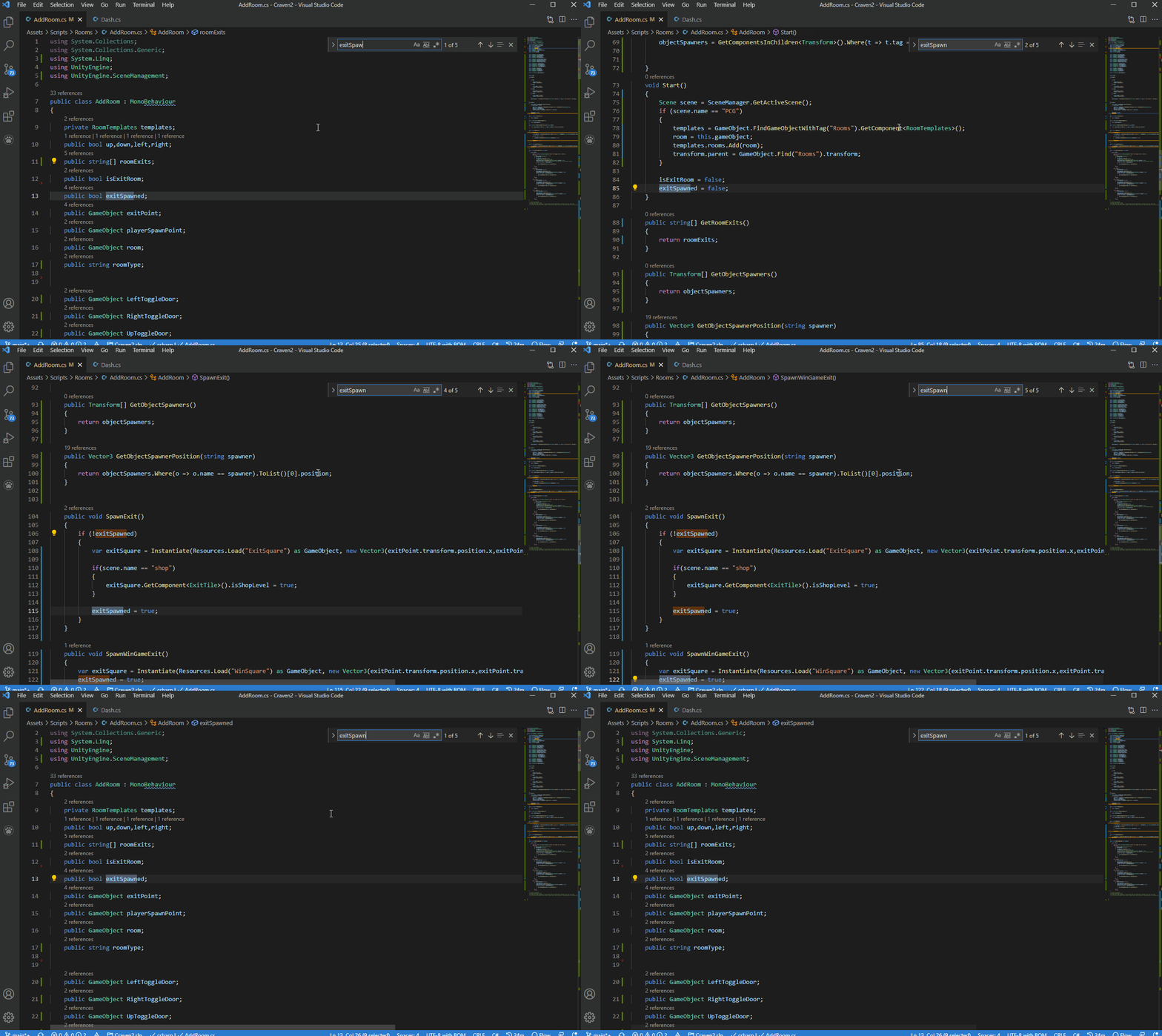
Ctrl + H opens the find and replace feature, this has saved my fingers wear and tear on countless occasions after I’ve decided to rename a variable and now must track down and change all the references to the previous variable name! Once you’ve entered your replacement word press Enter to replace each occurrence of your search term one by one or press Ctrl + Alt + Enter to change them all at once.
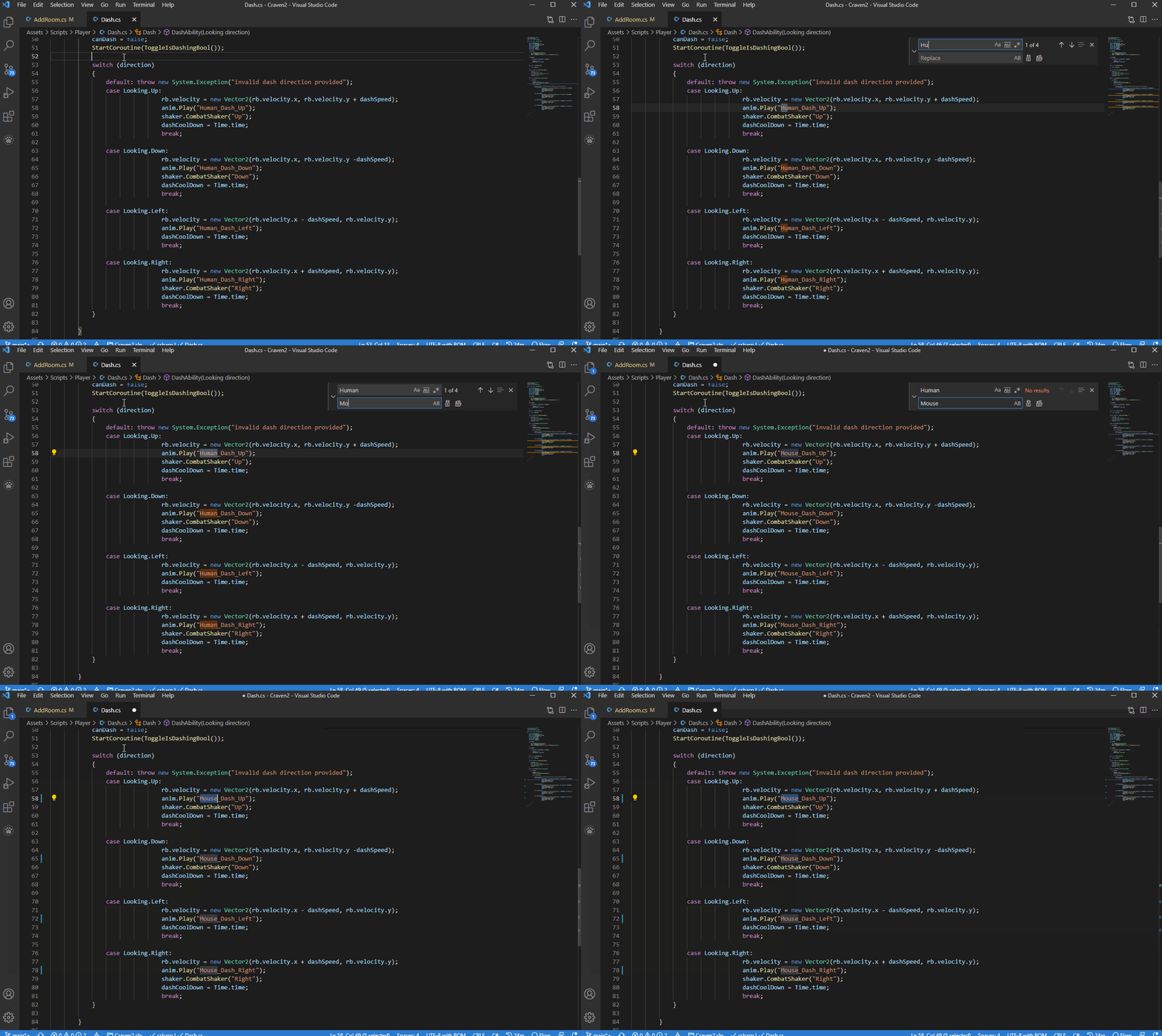
Shift + Ctrl + F opens the Global Find feature in the sidebar. This feature allows you to search for any string across all your project documents abd can be very useful when you remember the name of a function you need to review but can’t remember which file it’s in!
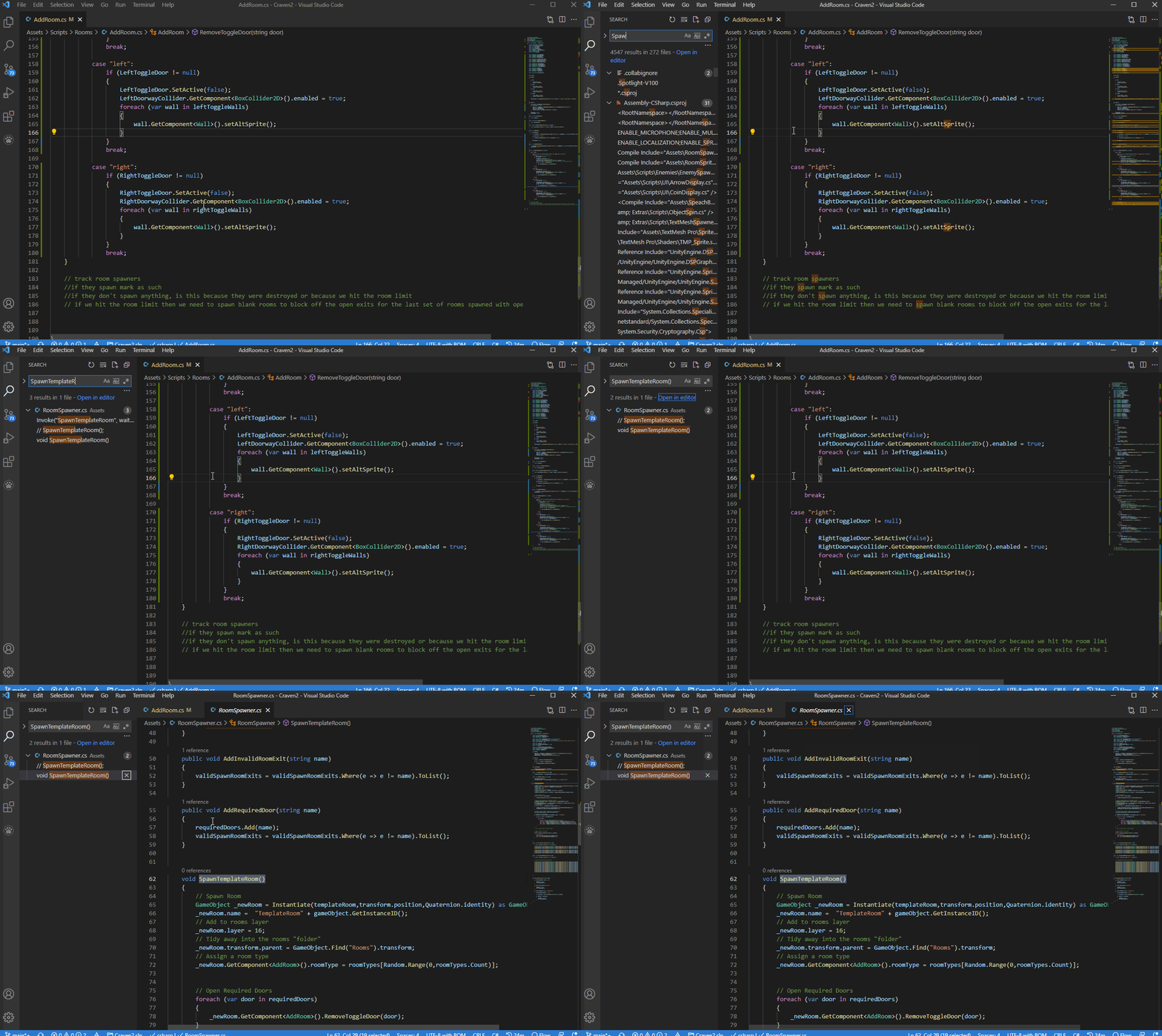
Once you have your search results press the Tab key a few times to move down to the results windows and use the arrow keys and Enter key to choose your selection.
Here’s a few quick basic editing shortcuts
Ctrl + X The industry-standard cut shortcut is the same but different in VSC, not only will it cut selected text, but also cut an entire line if no text is selected. Technically Ctrl + Shift + K is the official delete line shortcut, but that’s got a whole extra key to press, no thanks!
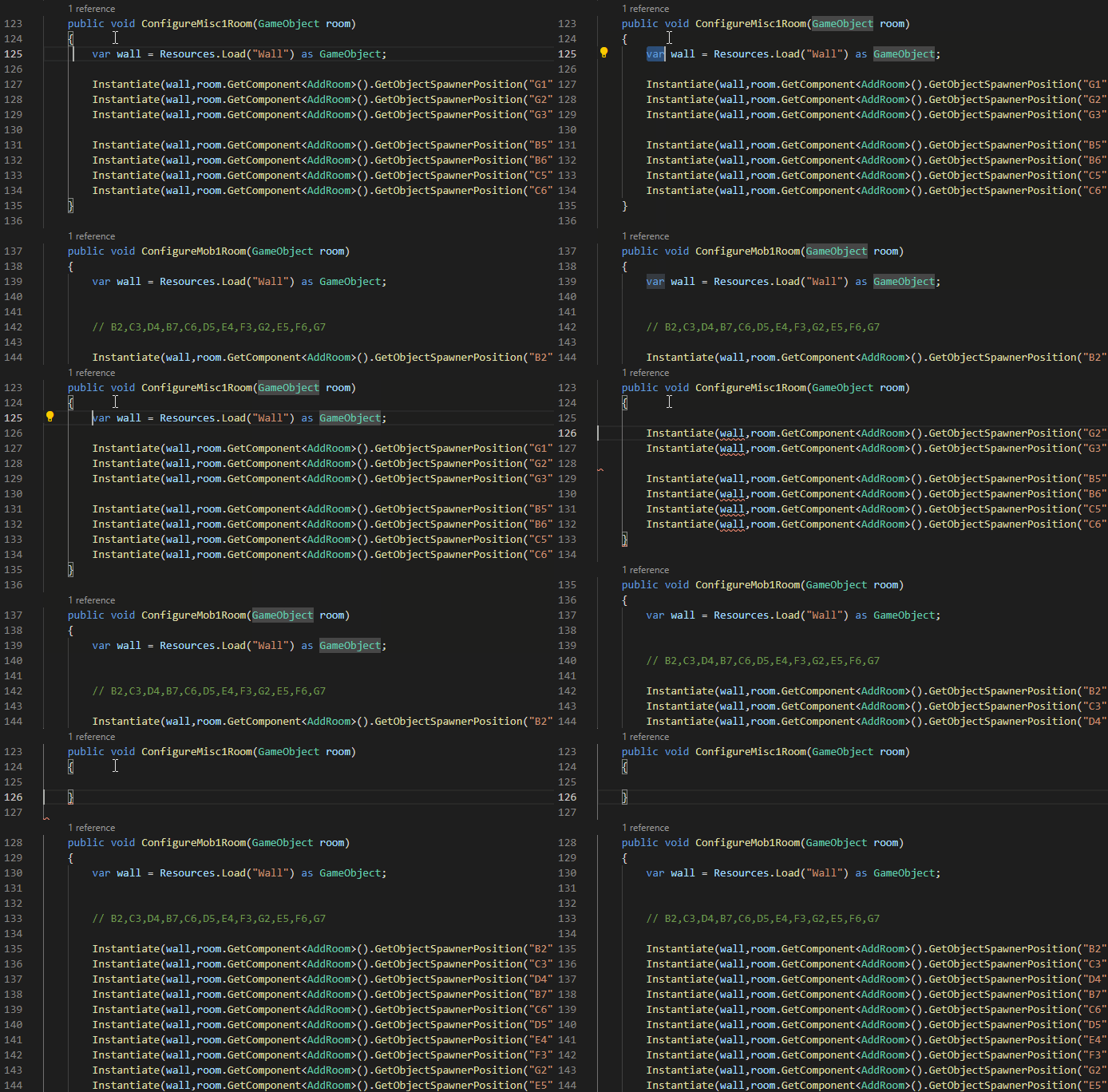
Ctrl + C As with the cut shortcut, the copy shortcut also works either with selections or whole lines.
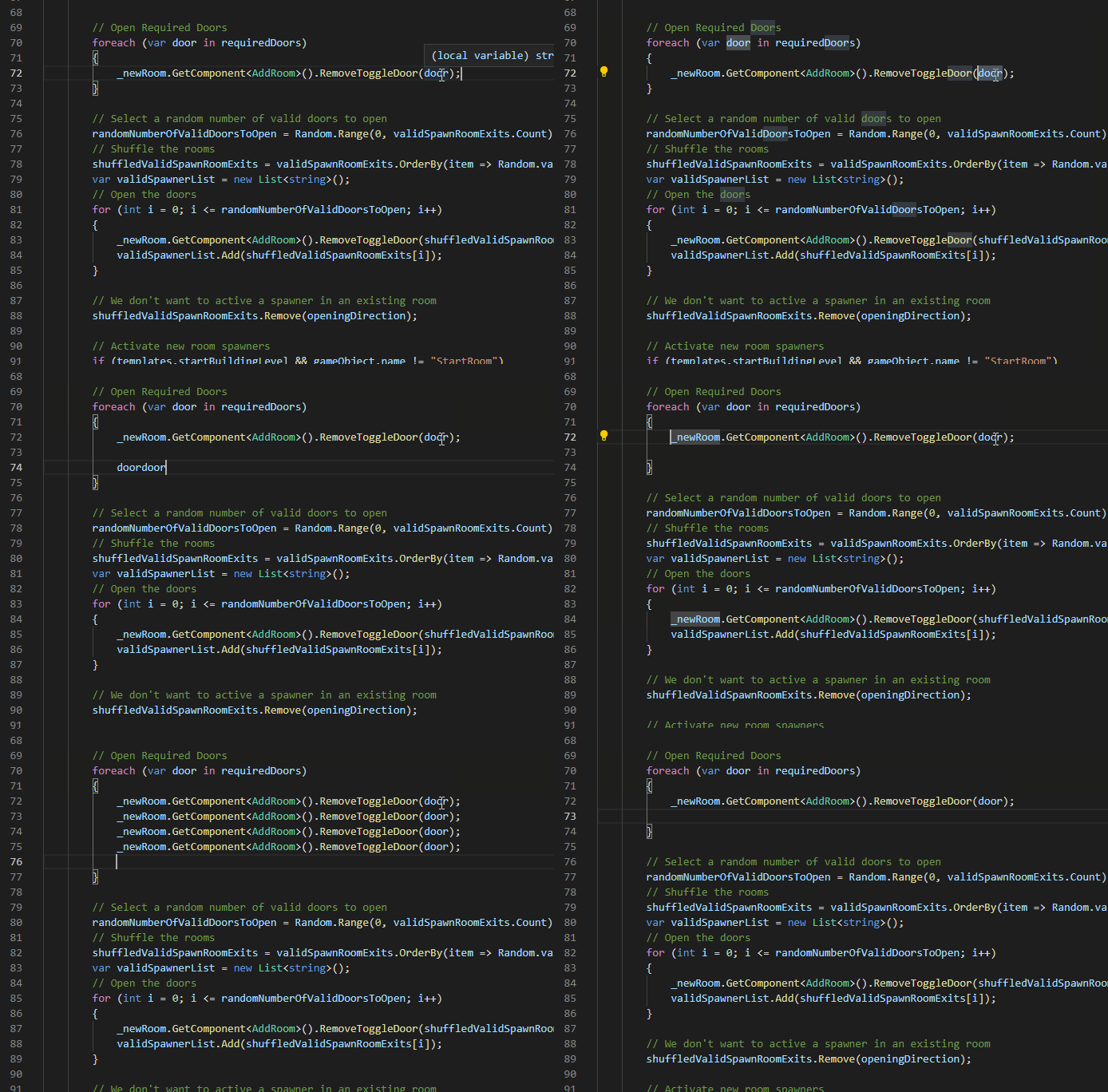
Alt + Up/Down This shortcut is great for moving lines of code about when refactoring or just trying to improve readability. It can move single lines or blocks of highlighted code.
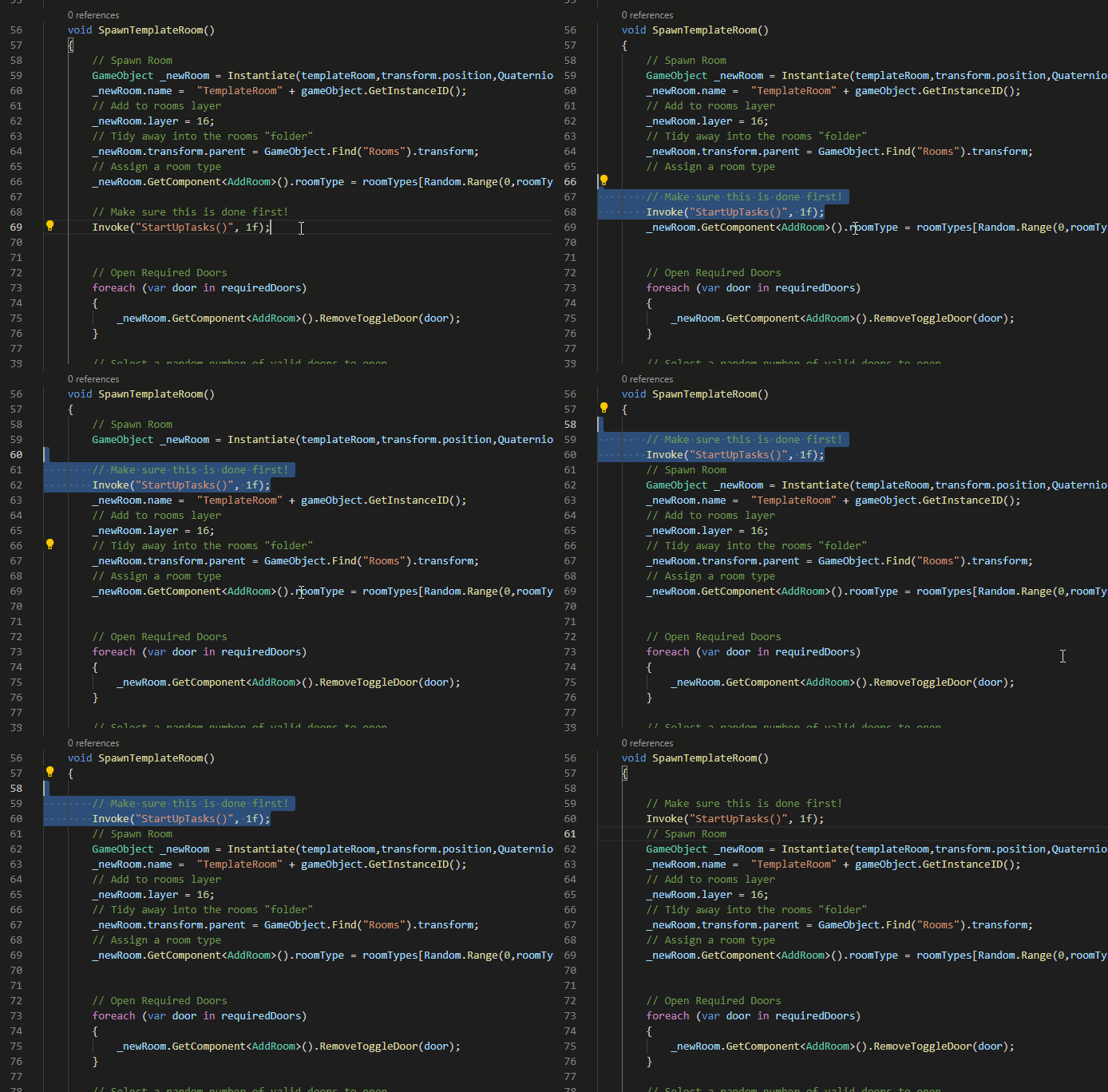
Ctrl + Left/Right This shortcut saves you time by skipping to the left or right word by word instead of character by character
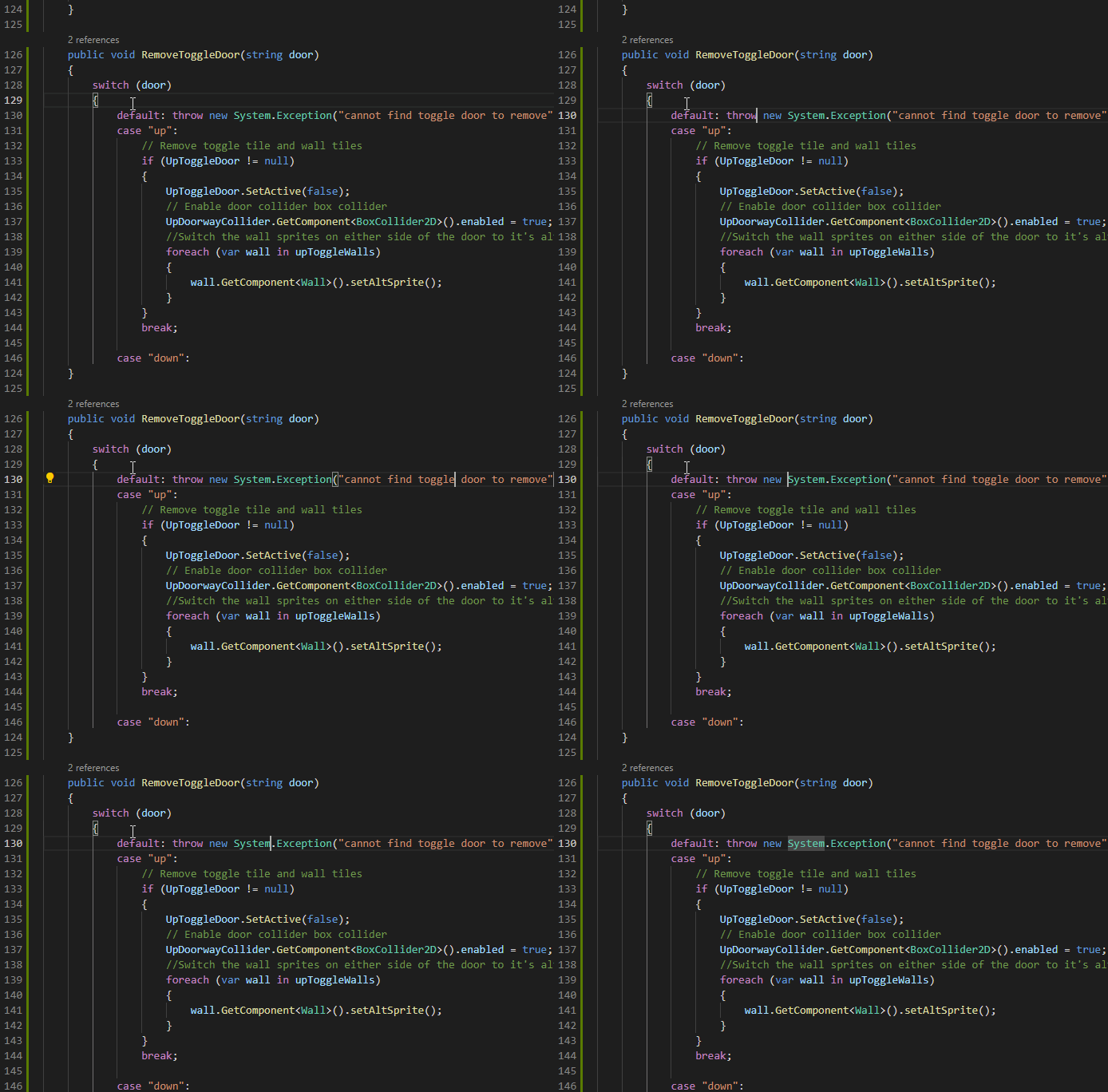
Used it in conjunction with the Shift key Ctrl + Shift + Left/Right will allow you to copy only the parts of a line you want.
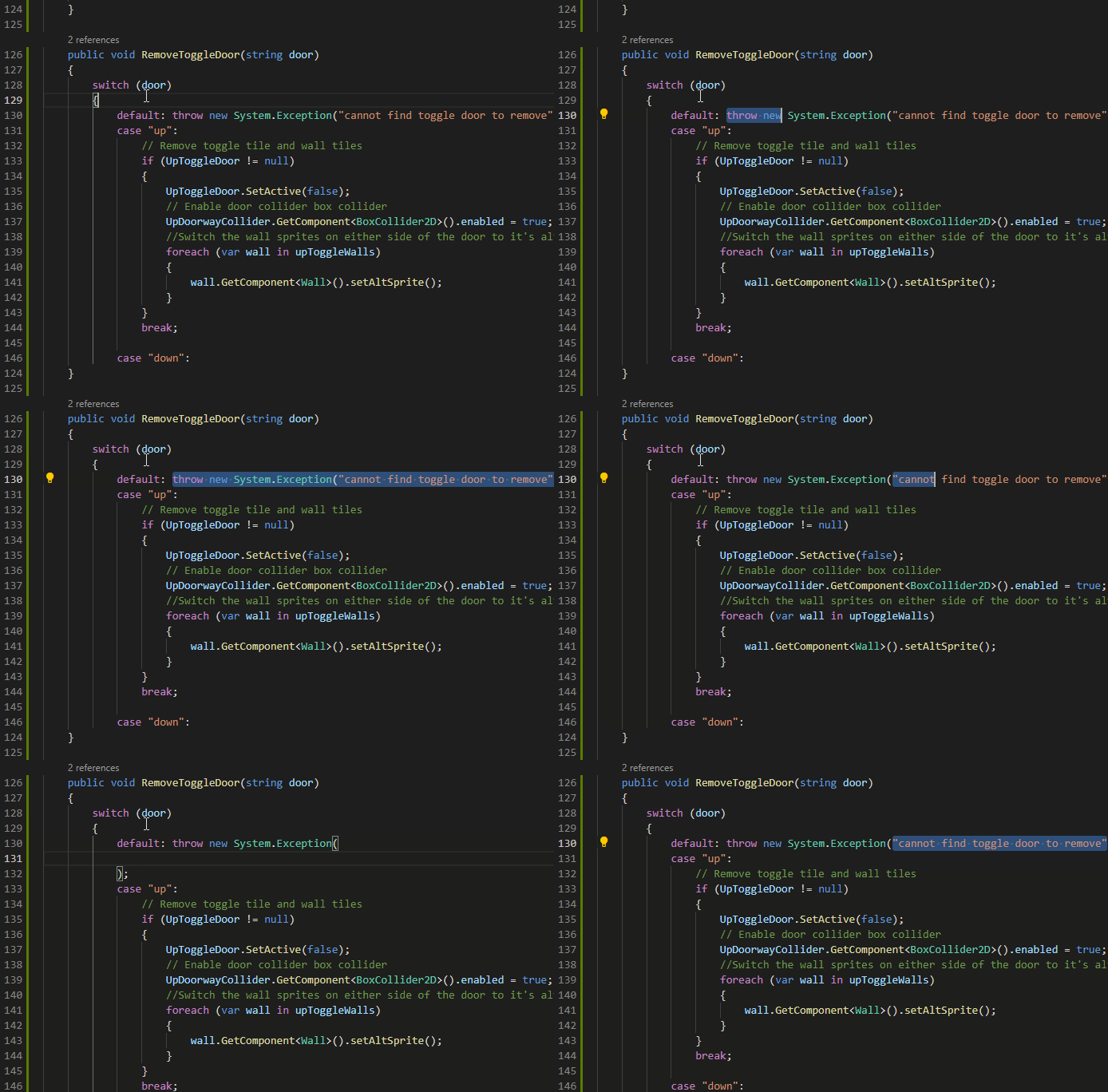
Ctrl – / Quickly comment out either a line or a selection, very useful when debugging and writing quick one-line comments. Shift + Alt + A can also be used for commenting out large code blocks
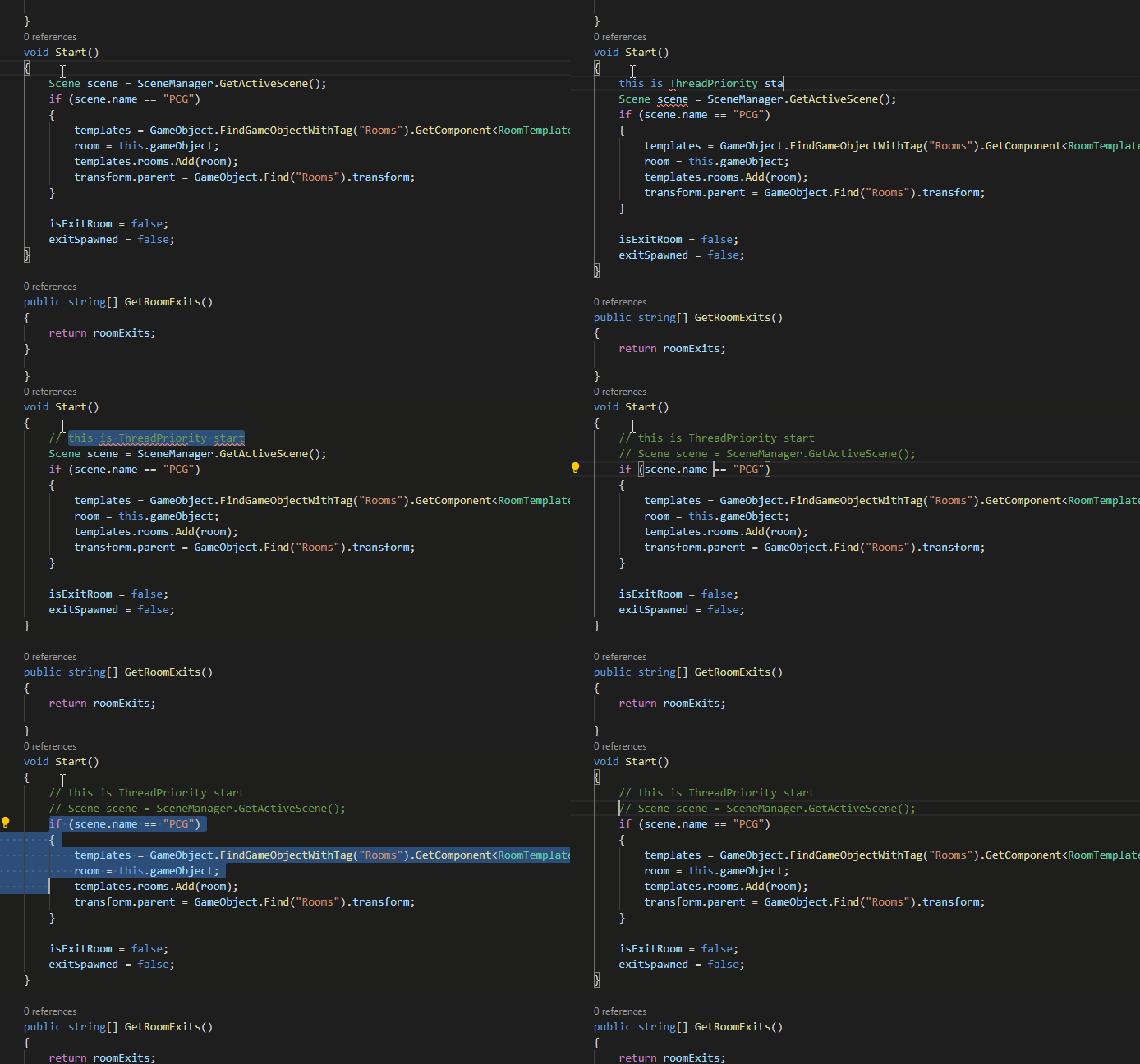
And let’s finish this list off with a bang – one of my favorite shortcuts. I use this all the time during my coding sessions.
While in a coding window, use the command pallet Ctrl + P to search for other files you want to review, use the Up/Down keys to highlight the file in the command pallet, and press Tab on that line to highlight the “OpenToTheSide” icon, press Enter to select. Viola! You now have two files open side by side.
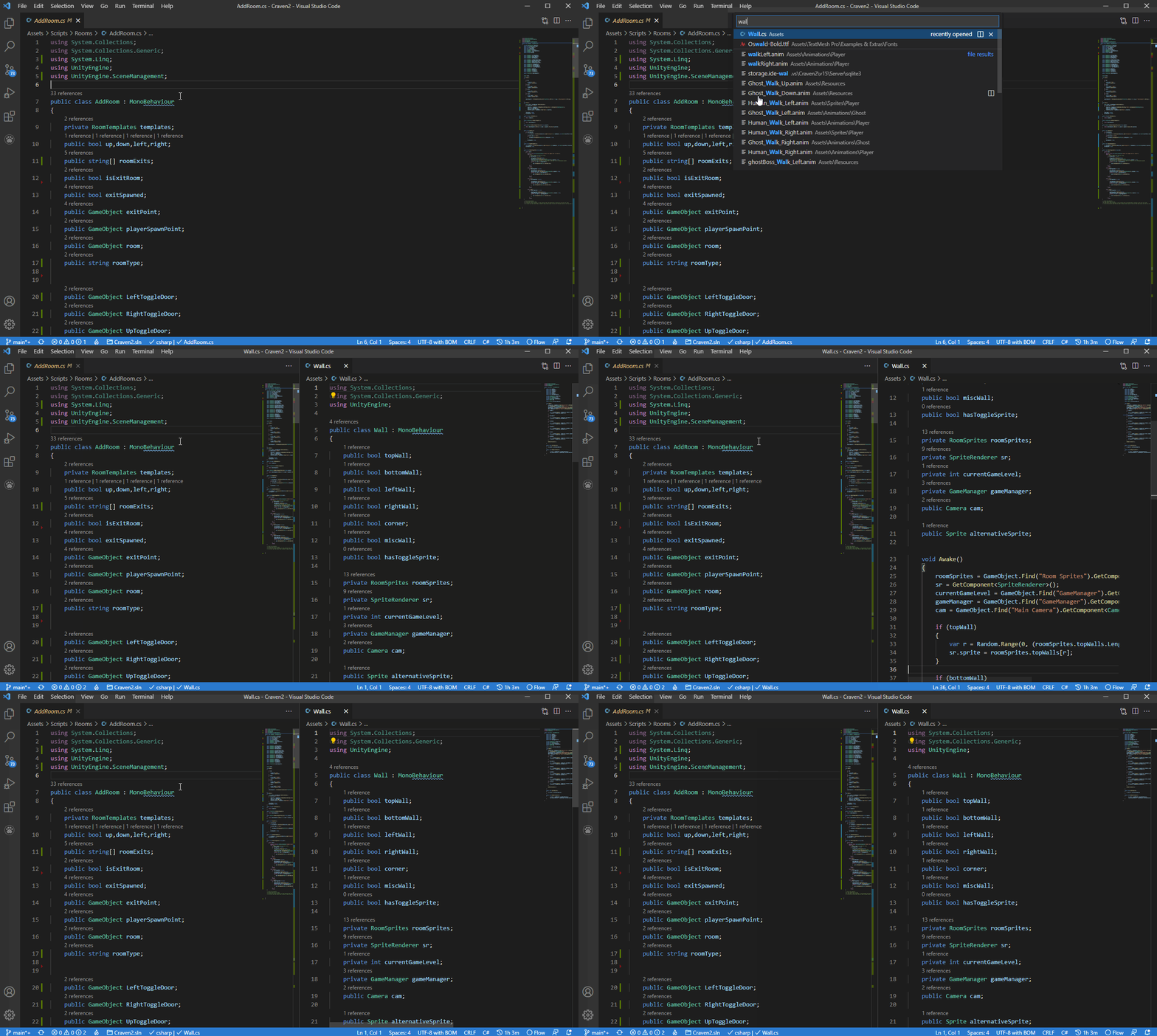
You can switch between open code windows using the Ctrl with any number key, Ctrl + 2 will switch focus to the second code window, if there is no second code window, a new empty file will be opened.
I hope you’ve found these Visual Studio Code shortcuts useful! Want more time-saving tools? Try StatusCake for free today!

6 min read StatusCake tells you that something might be broken. Hermes can check whether it really looks broken, decide who should hear about it, send the email, and keep the record for tomorrow morning’s summary.

3 min read The allure of OpenClaw is undeniable. You deploy a highly autonomous, self-hosted AI agent, give it access to your repositories and inboxes, and watch it reason through complex workflows while you sleep. It is the dream of the ultimate 10x developer tool realized. But as any veteran DevOps engineer will tell you: running an LLM-backed
7 min read There are cloud outages, and then there are us-east-1 outages. That distinction matters because failures in AWS’s Northern Virginia region rarely feel like ordinary regional incidents. They tend instead to expose something larger and more uncomfortable: too much of the modern internet still behaves as though one place is an acceptable concentration point for infrastructure,
7 min read Artificial intelligence is making software easier to produce. That much is already obvious. Code that once took hours to scaffold can now be drafted in minutes. Boilerplate, integration logic, tests, refactors and small internal tools can be generated with startling speed. In some cases, even substantial pieces of implementation can be assembled quickly enough to
10 min read Whilst AI has compressed the visible stages of software delivery; requirements, validation, review and release discipline have not disappeared. They have been pushed into automation, runtime and governance. The real risk is not that the lifecycle is dead, but that organisations start acting as if accountability died with it. There is a now-familiar story about
4 min read How AI Is Shifting Software Engineering’s Primary Constraint For most of the history of software engineering, the primary constraint was production. Code was expensive, skilled engineers were scarce, and shipping features required concentrated human effort. Velocity was limited by how fast people could reason, implement, test, and deploy. That constraint shaped everything from team size,